Character in every detail.
Light and dark themes, different gauge layouts, map and music. Change the look to match your mood.
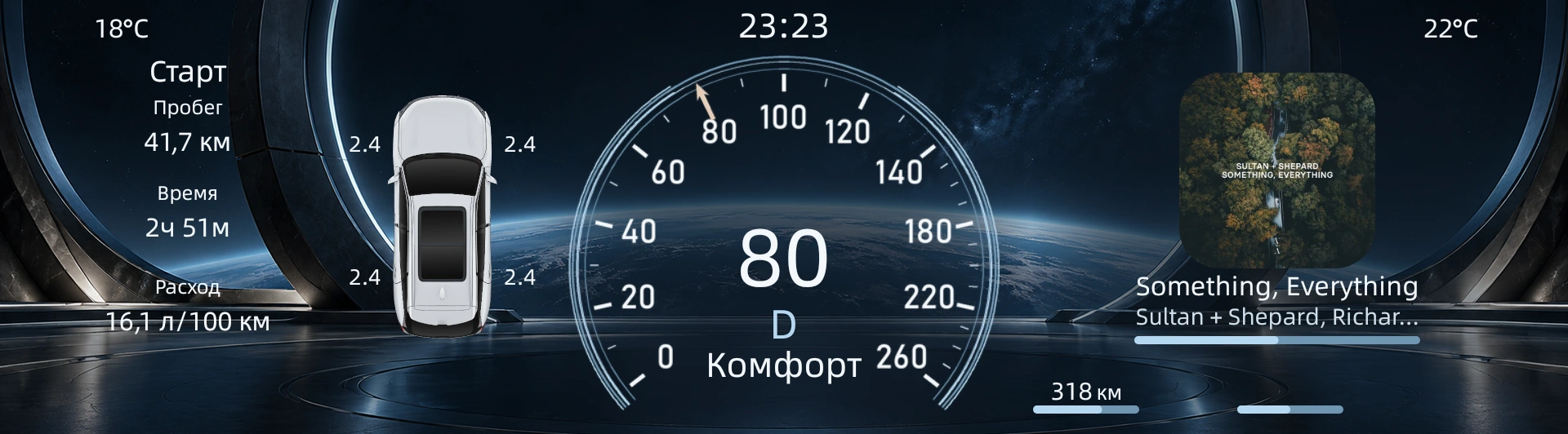
HMI and HUD themes, Navigator, cameras and HUD Speed.
Everything that matters on the road, arranged your way.

From gauge designs to map placement.
Build your cluster from familiar elements.
Light and dark themes, different gauge layouts, map and music. Change the look to match your mood.
Adjust the size, position and color of supported elements. Keep the essentials in focus.
Artwork, artist and track title. During calls, caller information appears when available.
Light or dark. A map or a vehicle.
Find a look you love.
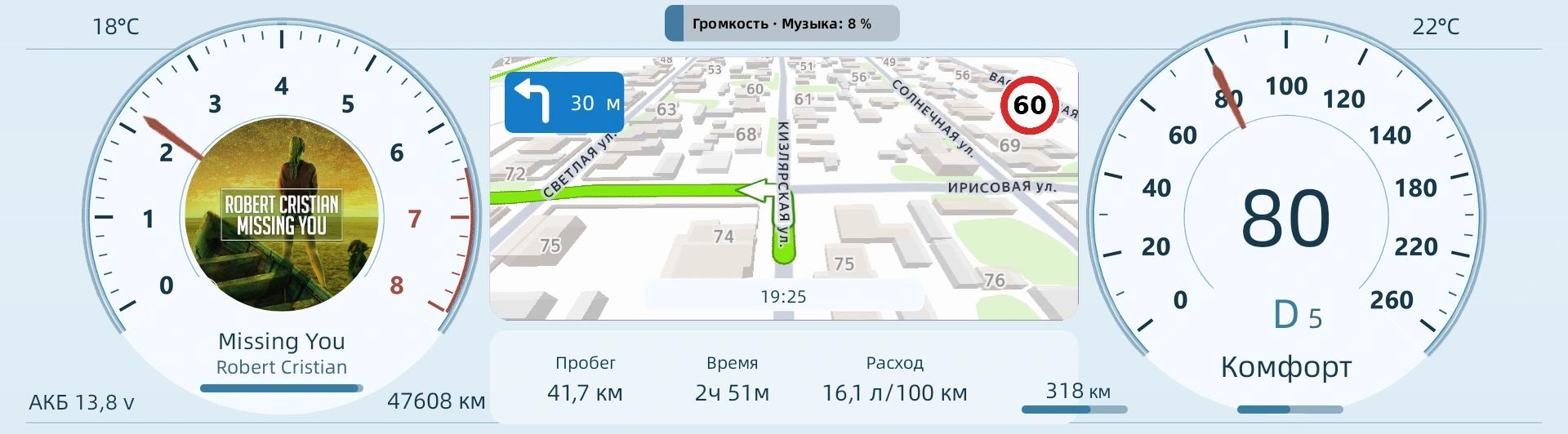
Previews are approximate and show only some layouts. Actual themes may differ.
Vehicle camera images on your instrument cluster and HUD. Choose when they appear and how much screen space they use.
Show a camera when the left or right turn signal activates. Choose the camera and its display conditions.
Camera images when reverse gear is engaged. A view for maneuvering, right where you want it.
Window position and size, image cropping, activation conditions and shutoff delay. Camera settings to fit your layout.
Learn about setupHUD Speed road camera warnings: speed limit and distance to the camera on your instrument cluster and HUD.
Adjust the block’s size and position to fit your theme.
Data comes from the HUD Speed app.Maps and navigation guidance within your cluster layout. GVision helps put familiar navigation where it suits you.
Learn about setup

Your own look for the head-up display.
High contrast, a clean background and clear accents.
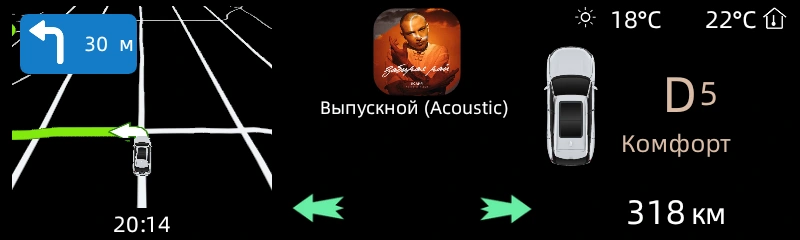
Theme preview, not a photo of the projection. HUD requires a compatible trim.
Choose your look. Connect your vehicle.
Manage your license in your account.
Features depend on the vehicle, trim and software version.
Check compatibilityOne payment. No monthly subscription.
Buy now Sign in with Telegram · Pay in your accountThe vehicle needs internet at least once every 28 days.Pay by card, SBP or another method on the payment provider’s secure page (YooKassa or GetPlatinum) — from your account on the website, the GVision Telegram mini app or a QR code on the vehicle’s screen. An electronic receipt will be sent to the email you provide.
GVision is a digital product: an app license with no physical delivery or delivery charge. The license activates automatically after payment confirmation when the vehicle goes online, within 24 hours at the latest.
Installation helpBefore buying, try GVision free for 72 hours. We will refund you if the paid license is not provided, the app does not work on a vehicle listed as compatible, or the payment was made in error or duplicated. Email bolderevav@mail.ru with your order number — we will refund the original payment method within 10 days, without deducting a fee.
Terms in the offer, section 8 (in Russian)Send your vehicle’s model, trim and software version on Telegram.
Ask a questionAfter installing GVision, link your vehicle using the app’s QR code.
Link vehicleManage your license in your account, and themes and elements in the app.
Open accountFeatures depend on the Geely model, trim and software version. Before buying, check compatibility on Telegram and provide these details about your vehicle.
HMI is the digital instrument cluster. HUD is the head-up display on the windshield. They use separate themes and settings. HUD works with compatible trims equipped with a head-up display.
Yes. Cameras can appear when turn signals or reverse gear activate. Window size, position, activation and deactivation conditions are set separately for HMI and HUD. Availability depends on the vehicle’s trim.
Road camera warnings, speed limits and distance to cameras. GVision displays data from the HUD Speed app on HMI and HUD; the block’s size and position are adjustable.
Click “Account” at the top of the page and sign in with Telegram. Your vehicles, licenses, purchases and orders are there.
The public offer and personal data processing policy are linked in the pricing section and footer. Your account will ask you to review them before you begin. Seller contact details are at the bottom of the page. Documents are in Russian.
News, setup help and the GVision community.
Everything close by, before your first drive and after.